

Query from the CLI
The fastest path iscargo-ai storage query. Reference each model logically as <dataset-slug>.<model-slug> — Cargo validates it against your models and rewrites it to the real warehouse table, so you never hand-build a physical table name:
Table naming conventions
How you name a table depends on how you query.In cargo-ai storage query (recommended)
Reference models logically as <dataset-slug>.<model-slug>:
Directly in your warehouse (BI tools, SQL console)
Querying the warehouse directly uses the physical table name, which depends on your warehouse and its configured scope. The building blocks are the schemadatasets_<connector-slug> and the table models_<model-slug>:
BigQuery
Snowflake
In the single-container scopes (BigQuery dataset, Snowflake schema) the
connector and model parts are joined with a double underscore (
__). Always
confirm the exact physical name with cargo-ai storage model get-ddl <model-uuid>.Query examples
These run throughcargo-ai storage query using logical <dataset>.<model> references. To run them directly in your warehouse instead, substitute the physical table names from the conventions above.
Basic query
Joining multiple models
Combine data from different Cargo models:Aggregations
Creating SQL models
You can create new Cargo data models by writing SQL queries against your existing tables. This is useful for combining data from multiple sources, applying transformations, or creating aggregated views.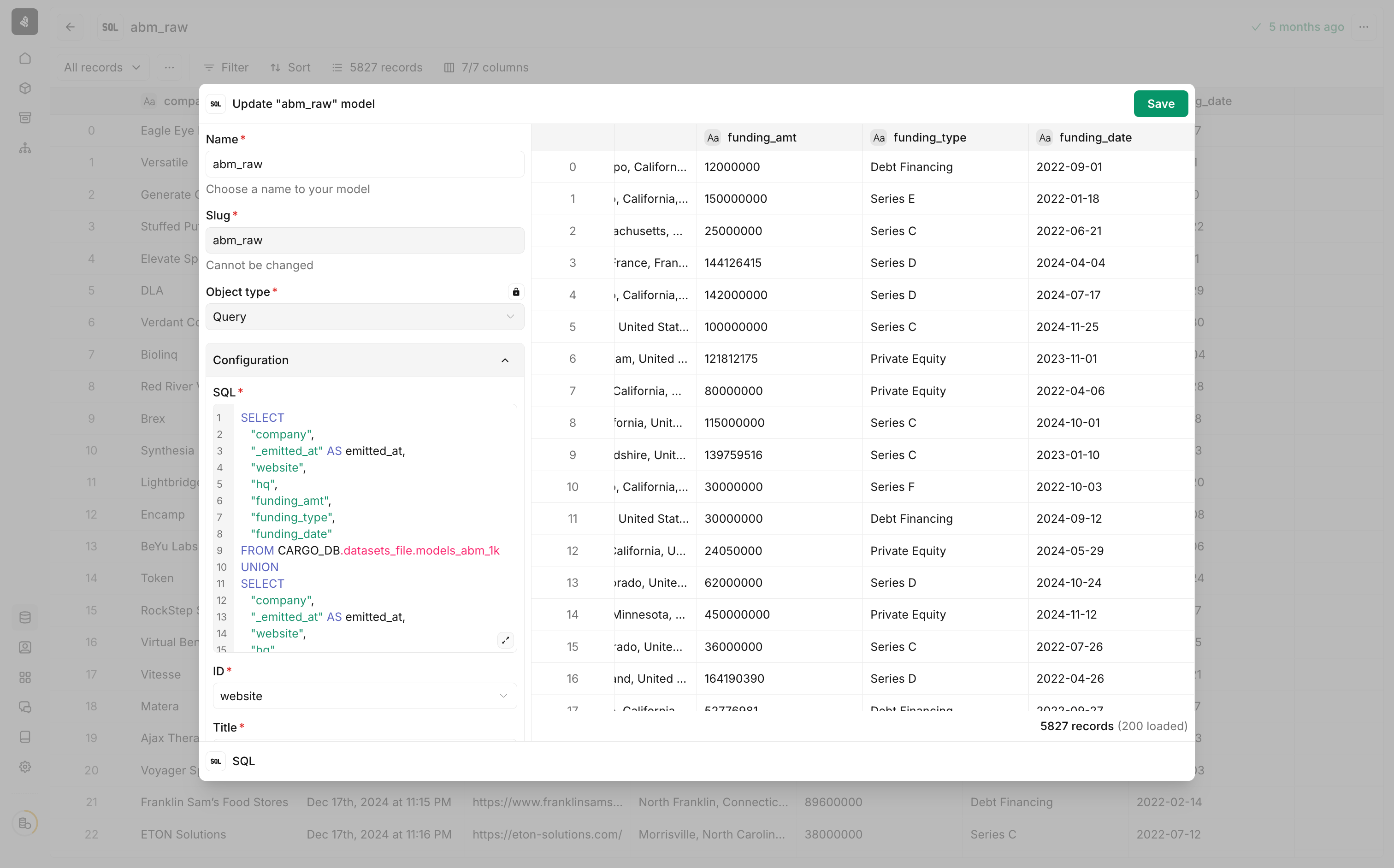
1
Add a new SQL model
Navigate to your data models and create a new model. Select SQL as the object type.
2
Write your SQL query
Write a query that selects data from your existing Cargo tables using the naming conventions above.
3
Configure column mapping
Map the required columns:
- ID — The unique identifier for each record
- Title — A human-readable label for records
4
Preview and save
Preview the query results to verify your data, then save the model.
Next steps
Workflows
Use model search, record, and custom column actions.
BigQuery setup
Configure BigQuery as your data warehouse.
Snowflake setup
Configure Snowflake as your data warehouse.